How to Record System Audio With Screen Capture on Windows
Capture Windows system audio and microphone together with your screen recording. Troubleshooting tips and demo workflows using Pixcreen.
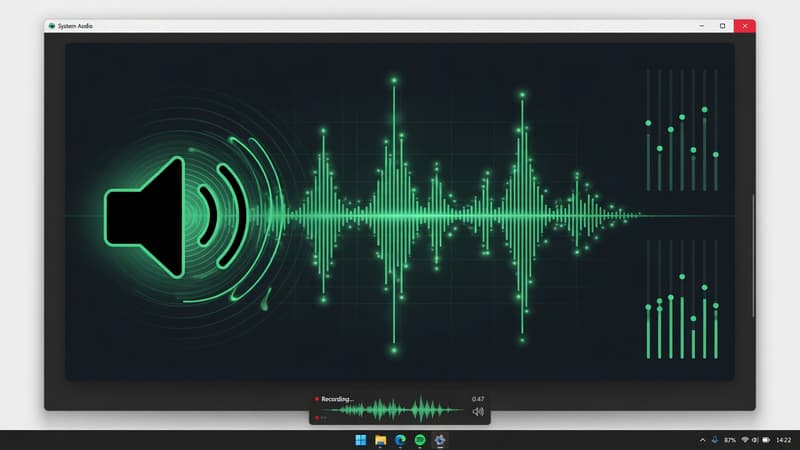
Direct answer: To record system audio on Windows with your screen, use a recorder that captures loopback/system sound plus optional mic. Pixcreen supports system audio and microphone so product sounds and narration land in one take.
Why system audio matters
Many products sound:
- Notification chimes
- Video players
- Games and creative tools
- Voice assistants inside apps
Silent demos of noisy products feel broken.
Windows capture basics
Modern Windows capture stacks (including Windows Graphics Capture paths) can include system audio depending on app support and permissions. Always:
- Enable system audio in the recorder UI.
- Select the correct output device.
- Do a 5-second test with a known sound.
- Watch meters for clipping.
Mic + system audio together
Best practices:
- Keep mic 15–20 cm from mouth
- Lower system volume slightly under voice
- Avoid double-capturing the same speaker into the mic (echo)
- Prefer headphones when narrating over app audio
Troubleshooting checklist
| Symptom | Try this |
|---|---|
| No system sound | Toggle system audio; restart app after device changes |
| Echo | Headphones; reduce speaker bleed |
| Only mic | Confirm loopback/system source enabled |
| Distortion | Lower Windows master volume; re-test peaks |
| Wrong device | Switch default playback device, reselect in app |
Demo scenarios
- SaaS with sound effects — system audio on, light mic narration.
- Music/creative apps — system audio primary; optional soft voiceover.
- Silent UI tools — mic only; disable system track for cleaner file size.
Privacy warning
System audio can capture:
- Meeting pings
- Personal media
- Password managers with audible cues
Close anything you would not want on a public MP4.
Pixcreen workflow
Record with mic + system audio enabled, polish zooms, add captions if you narrated, export MP4. One coherent soundtrack beats a silent video with a separate voiceover file.
System audio is the difference between “looks like the product” and “sounds like the product.”
Try Pixcreen free
Open-source demo recorder — no watermark, no subscription.
 Product Launch Video Workflow: From Script to Export
  Pixcreen vs Screen Studio: Honest Comparison (2026)
  Webcam PiP for Product Walkthroughs: A Practical Setup