How to Record Product Demos on Windows (2026 Guide)
Step-by-step guide to recording clean product demos on Windows with native capture, mic, system audio, zoom, and MP4 export using Pixcreen.
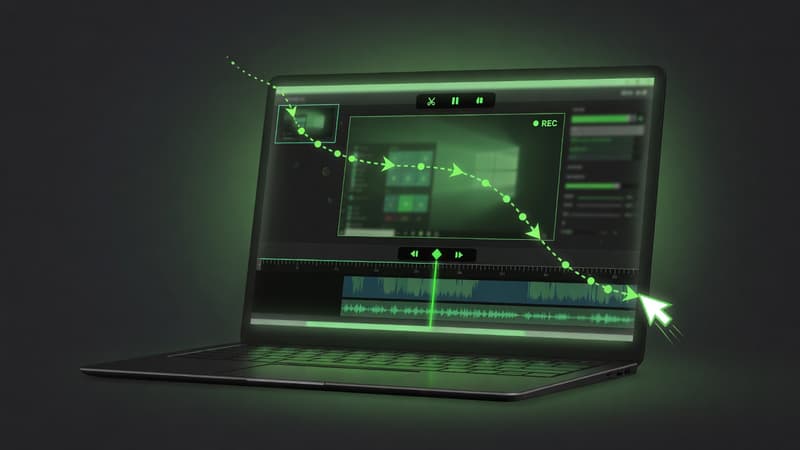
Direct answer: On Windows, record product demos with a tool that uses Windows Graphics Capture, captures mic and system audio, and lets you polish zoom before export. Pixcreen does this natively so demos look sharp without a separate editor.
Prep your Windows environment
Before you hit record:
- Close noisy apps and disable notification banners.
- Use a consistent display scale (100% or 125%).
- Switch the product UI to a clean demo account.
- Write a 5–8 step script so you do not ramble.
- Plug in a simple USB mic if laptop audio is weak.
Step 1 — Install and permissions
Install Pixcreen from GitHub Releases. When Windows prompts for screen capture or microphone access, allow it. Without permission, you will get black frames or silent tracks.
Step 2 — Pick window vs full screen
Prefer window capture for SaaS demos:
- Avoids personal desktop clutter
- Keeps aspect ratio predictable
- Makes crop simpler later
Use full screen only for multi-monitor or OS-level flows.
Step 3 — Audio plan
Decide what the viewer must hear:
- Mic only — narrated UI tours
- System audio — apps with sound effects or video
- Both — most launch demos
Test levels for 10 seconds. Peak hot audio ruins otherwise perfect takes.
Step 4 — Record in short takes
Do not aim for one perfect 8-minute take. Record chapters:
- Problem / old way
- Core feature path
- Result / payoff
Shorter takes are easier to trim and speed-ramp.
Step 5 — Zoom where attention matters
Add zooms when:
- Clicking a small control
- Typing into a form field
- Showing a chart detail
- Highlighting a settings toggle
Skip zoom on large full-page layouts—it feels gimmicky.
Step 6 — Export for the destination
| Destination | Format | Tip |
|---|---|---|
| X / LinkedIn | MP4 16:9 or 1:1 | Hard captions help mute autoplay |
| Docs | GIF or short MP4 | Loop the 3–8 second “aha” |
| YouTube | MP4 1080p | Keep intro under 8 seconds |
| Landing page | MP4 | Compress for fast LCP |
Common Windows mistakes
- Recording the wrong display on multi-monitor setups
- Forgetting system audio for video players inside the product
- Huge cursor with no smoothing (looks jittery)
- Exporting 4K for a 480p social feed
Checklist before you publish
- First 3 seconds show the product value
- Cursor is visible on dark UIs
- No desktop passwords in frame
- Captions reviewed for product names
- File named for SEO (
feature-name-demo.mp4)
Master this Windows loop once and every launch video gets faster.
Try Pixcreen free
Open-source demo recorder — no watermark, no subscription.
 Product Launch Video Workflow: From Script to Export
 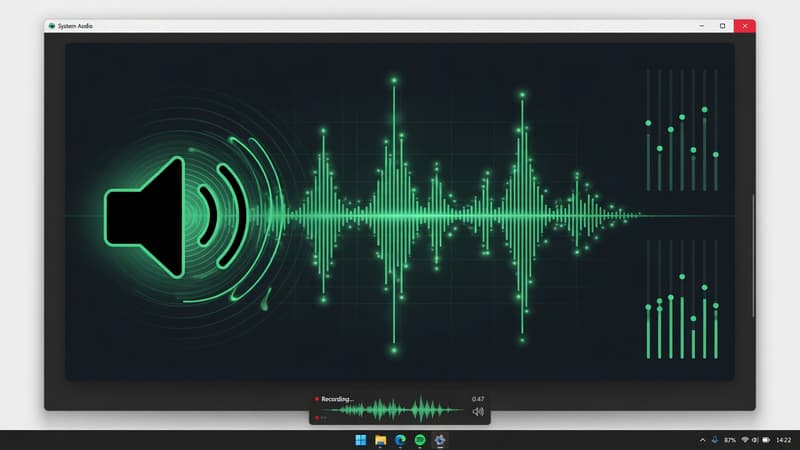 How to Record System Audio With Screen Capture on Windows
  Pixcreen vs Screen Studio: Honest Comparison (2026)